
Install the app
From the iOS app store or Google Play store search for "FlexiPOS" and install.
Login
Flexischools will set you up with a login and password for each FlexiPOS device you are using. Its important to login with a different user on each device so we can give you detailed reporting on which device has sold what.
Creating transactions
You can create transactions in FlexiPOS using:
- Items from your supplier catalog
- Keypad - simply entering an item price which created an item called 'manual item'
| TIP - Using items will create richer reporting to track sales by item and also provide parents useful information on what their student is purchasing. |
Items
The main screen will show you the items linked to your FlexiPOS service. To link an item to show on FlexiPOS login to your supplier portal, locate the item, on the edit screen of the item choose your FlexiPOS service to link it. You can also link multiple items quickly and easily using the bulk edit function in the supplier portal.
| TIP - Add item images to your items so you can easily identify them on FlexiPOS for faster checkouts |
You will need to log out and back in for any changes made in the supplier portal to show in FlexiPOS
Favorites
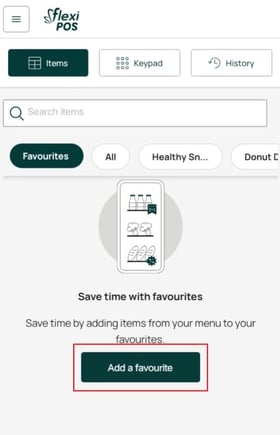
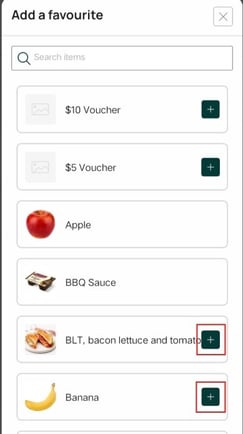
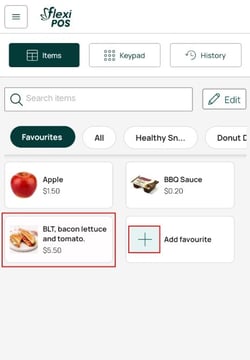
FlexiPOS now allows you to save and order favorites on each device. Simply tap "add favorite" on the main items screen ensuring you have the "Favorites" category selected at the top. To change the order of your favorites or to remove a favorite, tap on the edit button
Enabling Cash
If you want to also accept cash in FlexiPOS you need to enable it.
Go to menu (top left button) and choose "Settings" there you will see an option to enable cash, tap on the slider so it is green.
Enabling EFTPOS
To check your EFTPOS terminal is supported refer to: FlexiPOS - Minimum hardware specifications
To setup the EFTPOS terminal see: Pairing EFTPOS with FlexiPOS using Linkly
| TIP - If you have multiple devices running FlexiPOS you can configure each one to differently so you can designate queues for cash, student card and EFTPOS sales to speed up service. Running FlexiPOS in student card only mode is the quickest. |
Daily Sales
From the top left menu go to "Statistics" this will show you your daily totals from this particular device.
From here you can share this from the device to email or save it locally
Reporting
Transaction and item sales reports are available via your supplier portal.
Troubleshooting
Items Do Not Appear in FlexiPOS
Confirm that:
- The item is linked to the correct FlexiPOS service.
- The item is active.
- The item is marked as in stock.
- The item and its category have been saved.
- You have logged out of FlexiPOS and logged back in since making the change.
An Item Price or Image Is Out of Date
Open the item in the Supplier Portal and confirm that the latest changes were saved.
Then log out of FlexiPOS and log back in to refresh the item information.
Cash Is Not Available at Checkout
Open Settings and confirm that the Cash toggle is enabled.
Because settings can differ between devices, check the setting on the specific FlexiPOS device where the issue is occurring.
EFTPOS Is Not Available or Connected
Confirm that:
- The terminal is supported.
- The terminal and FlexiPOS device are powered on.
- Both devices have the required network connection.
- EFTPOS has been enabled in FlexiPOS.
- The pairing or terminal setup process has been completed.
- The EFTPOS terminal is connected to the correct FlexiPOS device.